

All information for initial configuration and commissioning of the mobile Hand Computer Zebra MC3330XR.
Step 1 - Start
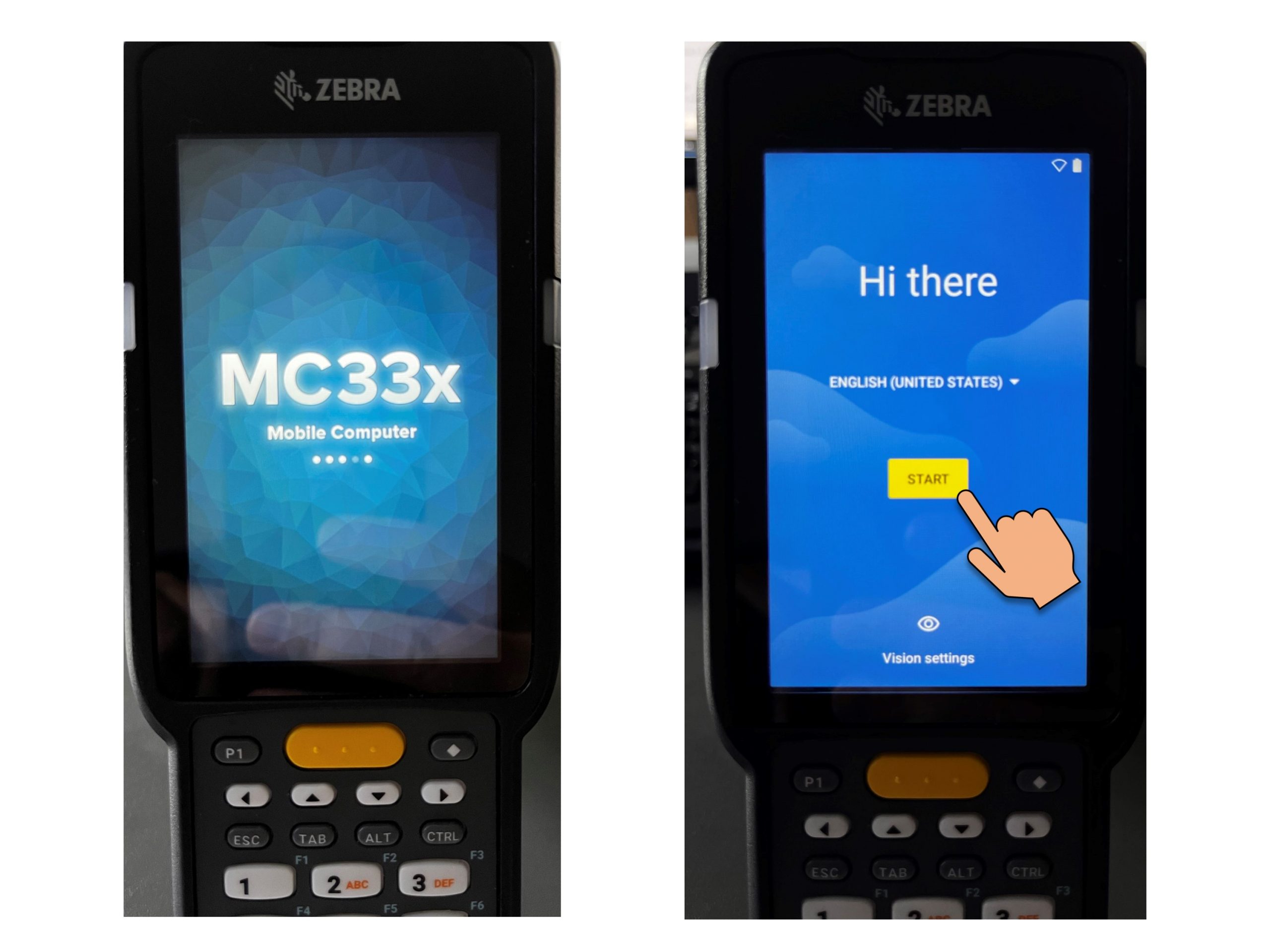
Start Screens Zebra MC3330XR.
Step 2 - Configuration WLAN
Selection and configuration of the right WLAN network of the mobile Hand Computer Zebra MC3330XR.
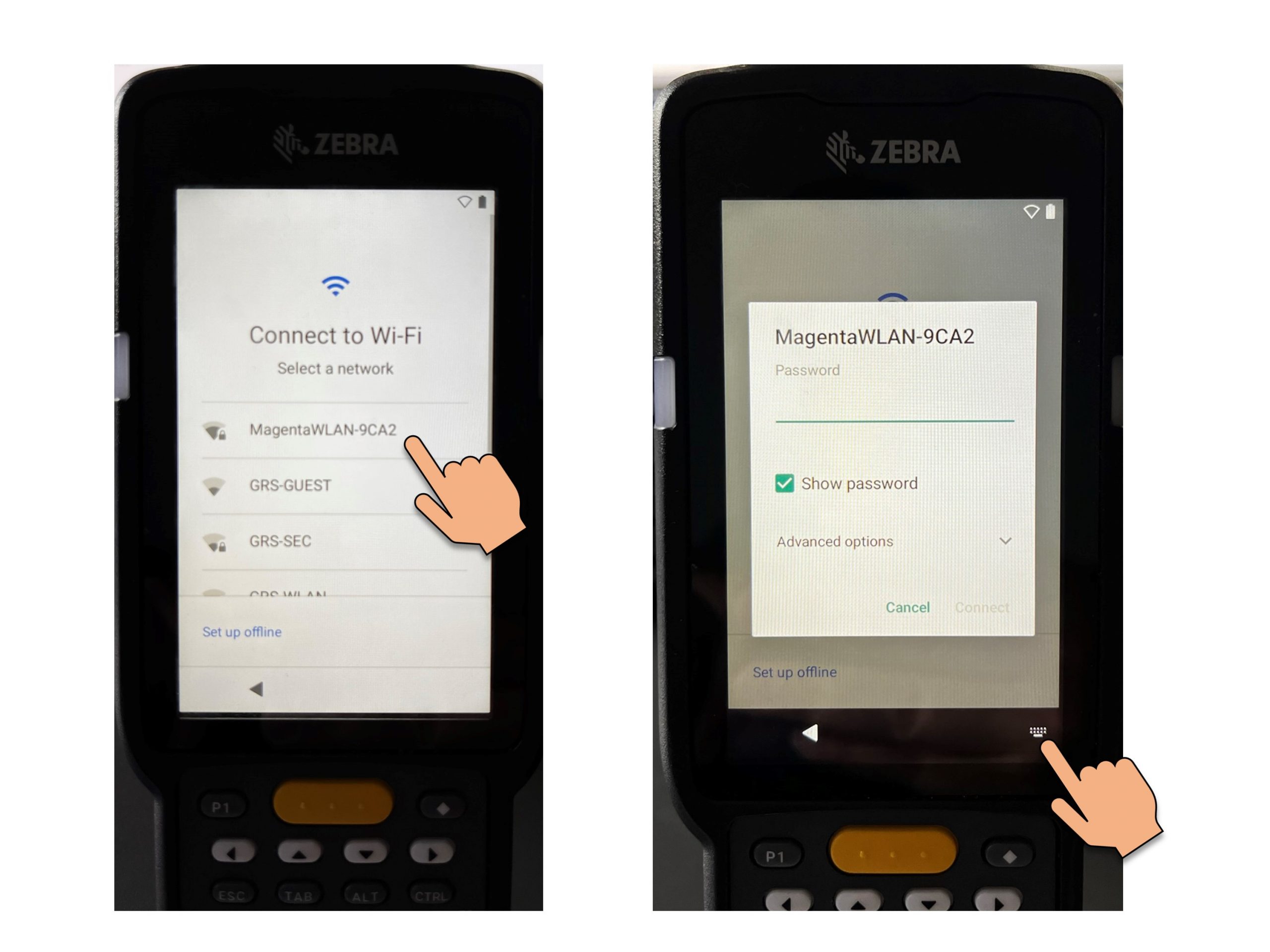
optional display of password - Zebra MC3330XR.
Keyboard activation
Step 3 - WLAN Key & Virtual Keyboard
Selection and configuration of the right WLAN network of the mobile Hand Computer Zebra MC3330XR.
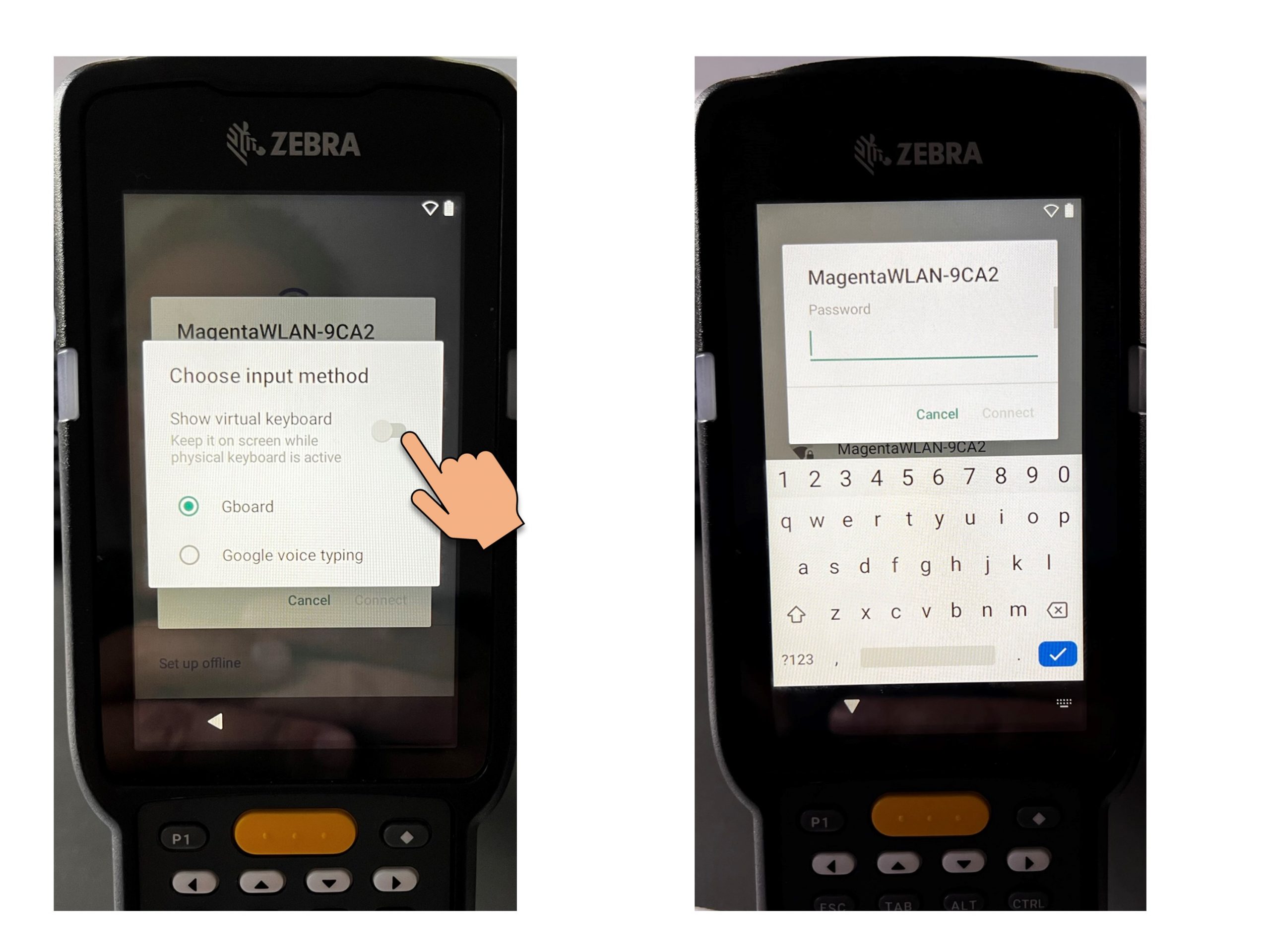
Step 4 - Sign in with Google Account
The corresponding Google Account is managed and provided by Recalo.
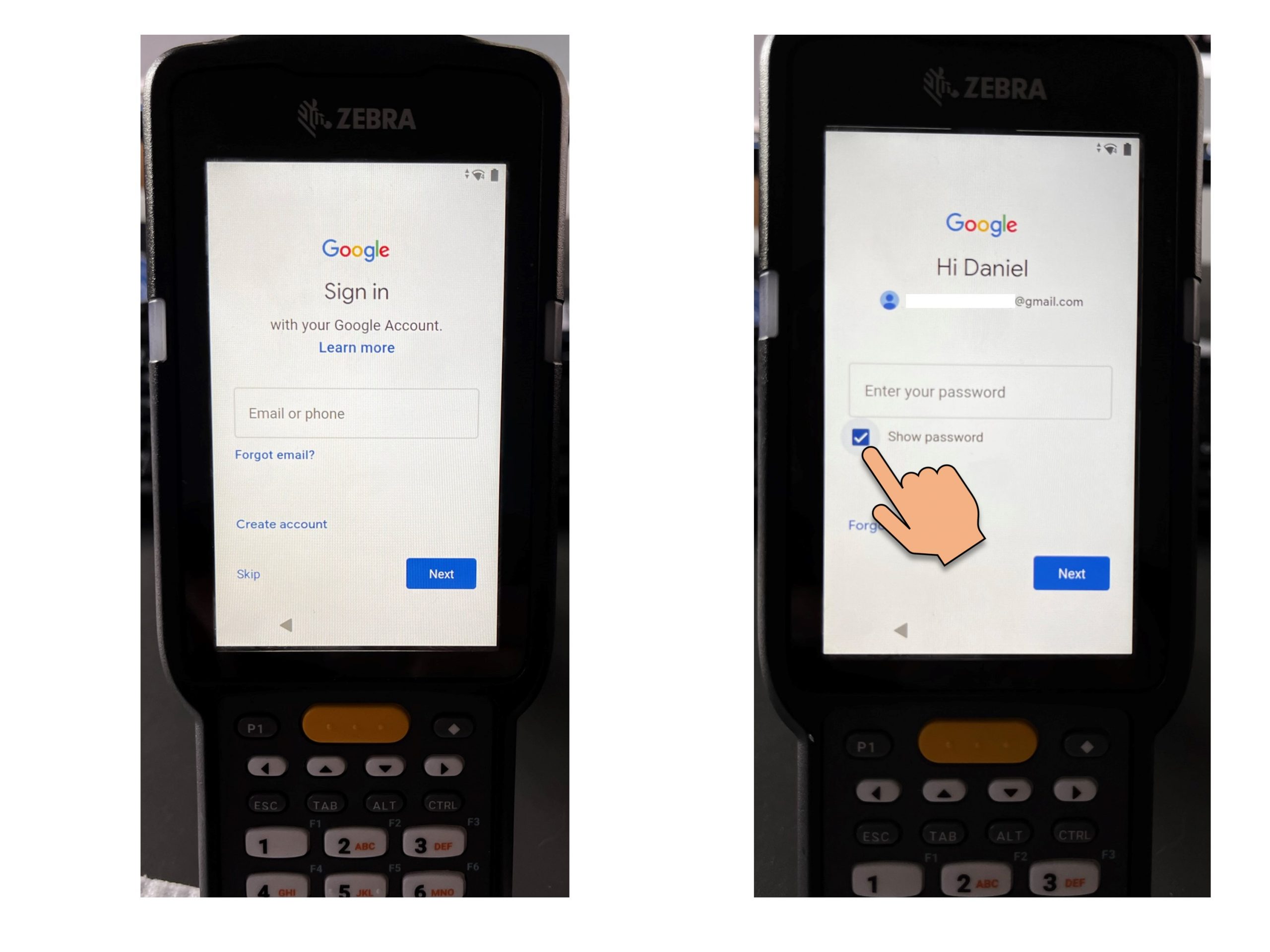
Input Google Account
Step 5 - Further settings
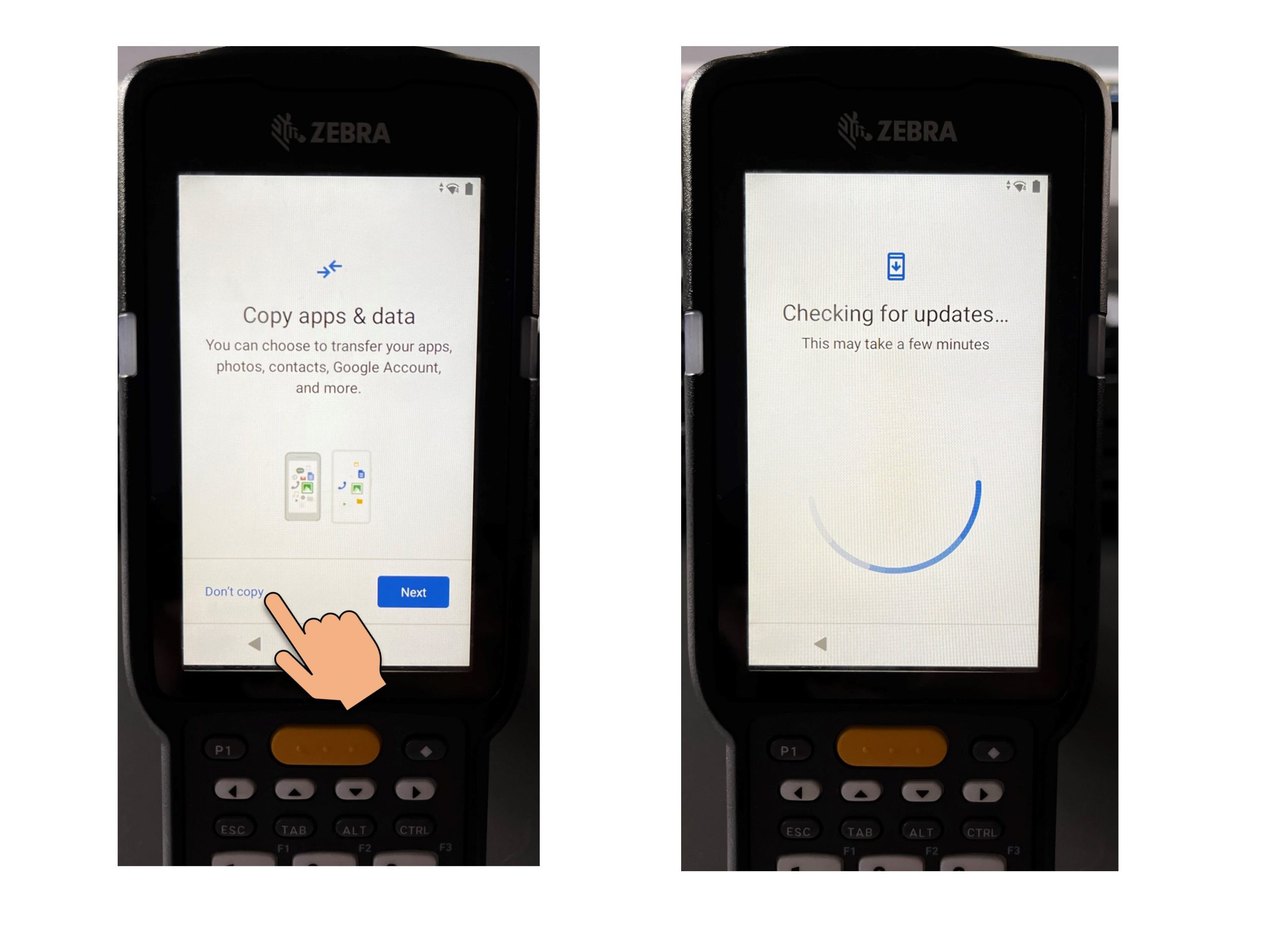
Initially, this is a new account created exclusively for the Recalo application. Nothing needs to be copied.
Step 6 - additional security settings
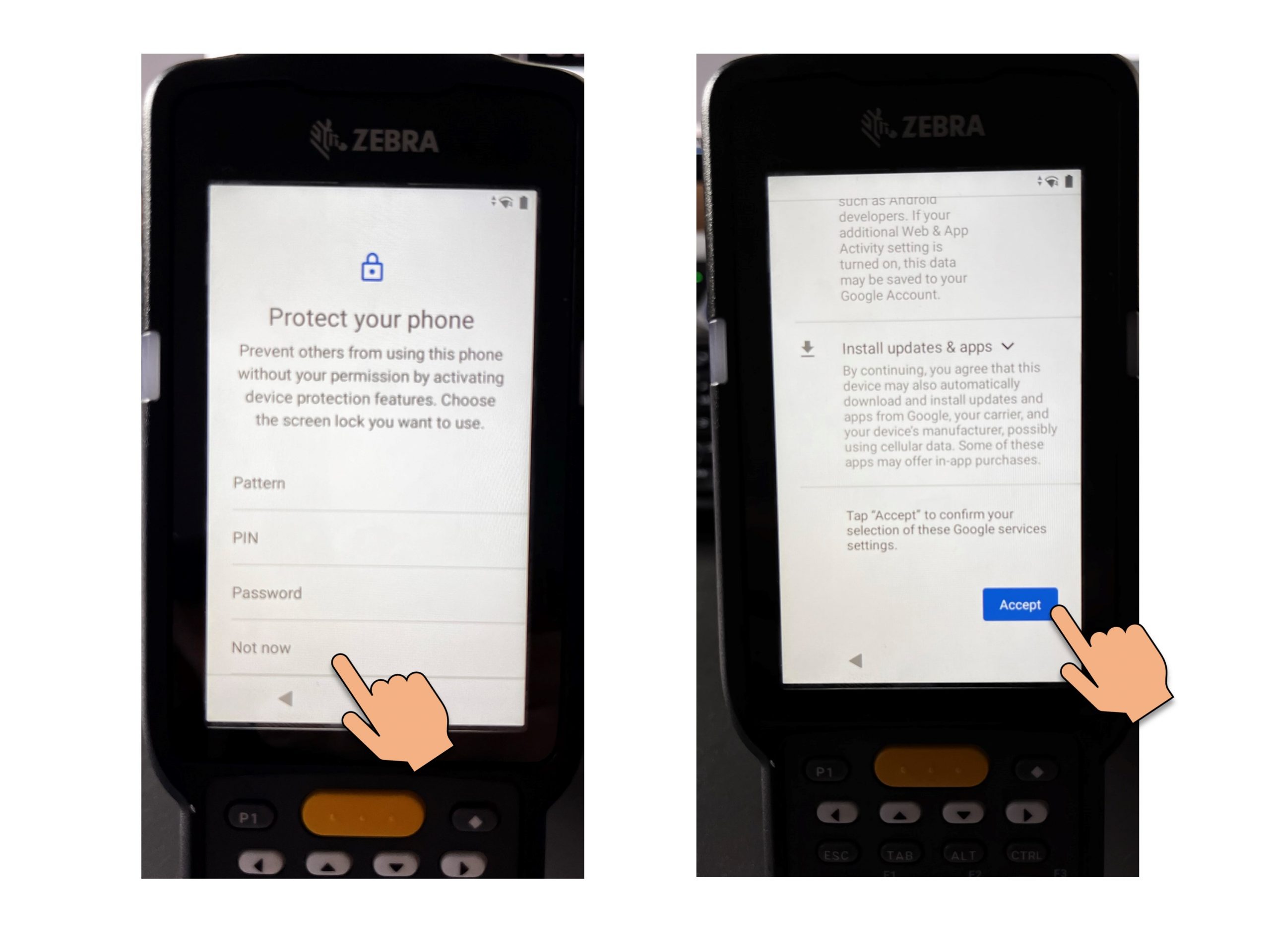
not mandatory
Step 7 - Default settings are sufficient
No further settings necessary
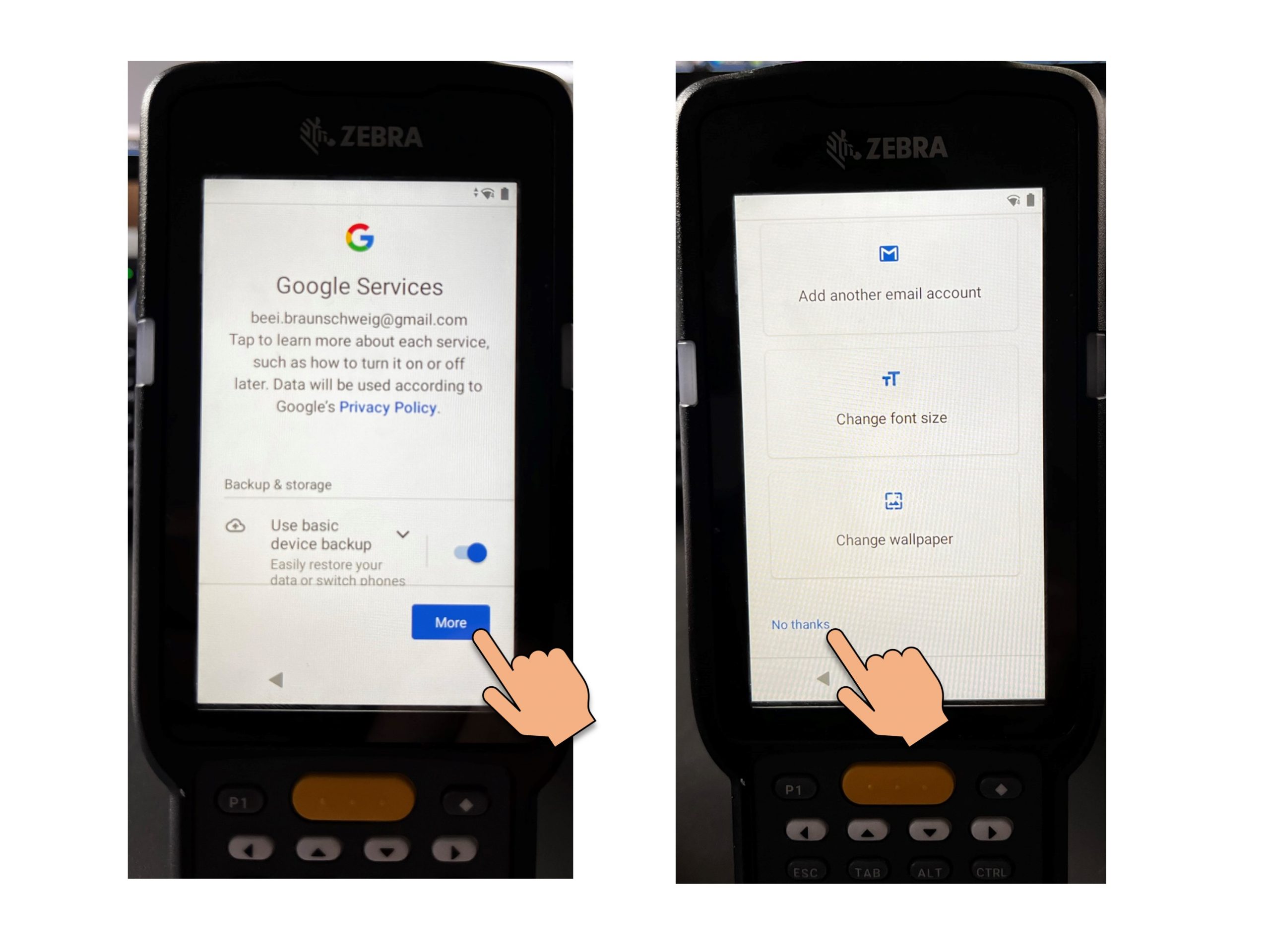
no further settings necessary
Step 8 - Skip further settings
no further settings necessary
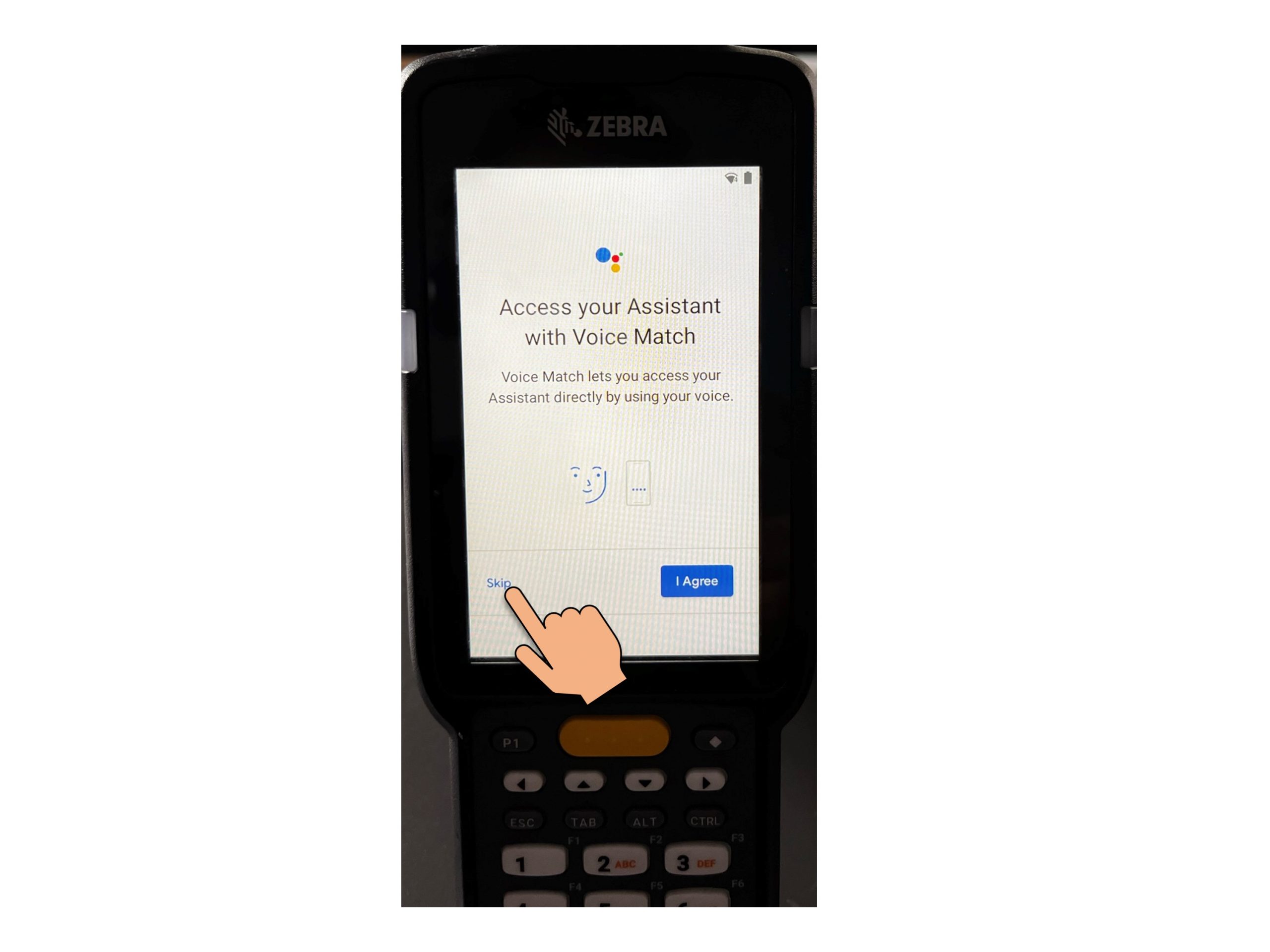
Step 9 - Installing the RECALO SAM App
Installing the app from the Play Store.
Simply search for the application using the search function in the Play Store.
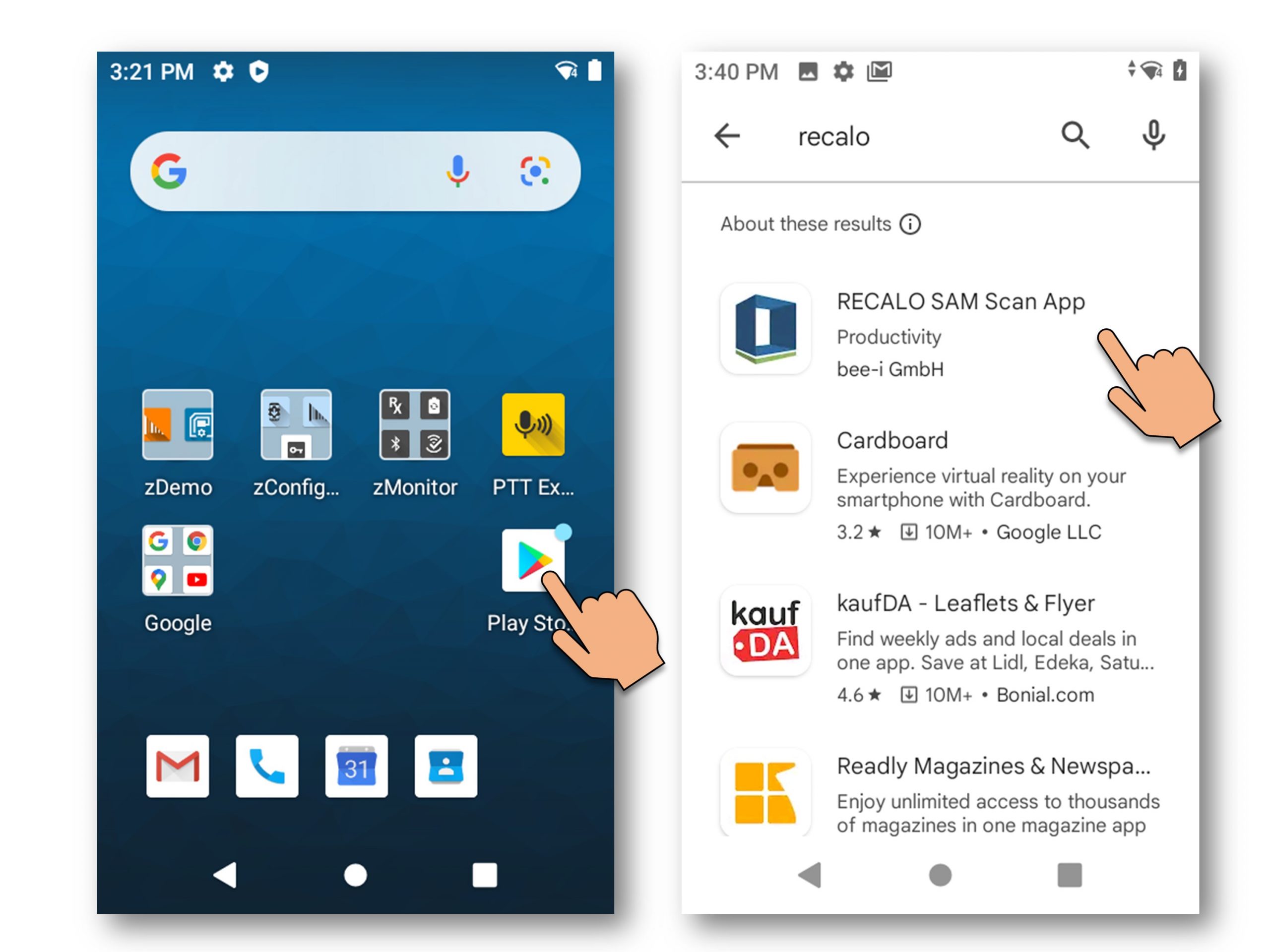
Google Play Store
Step 10 - Starting the Scan App
Now the application must be configured by the Recalo IT team.
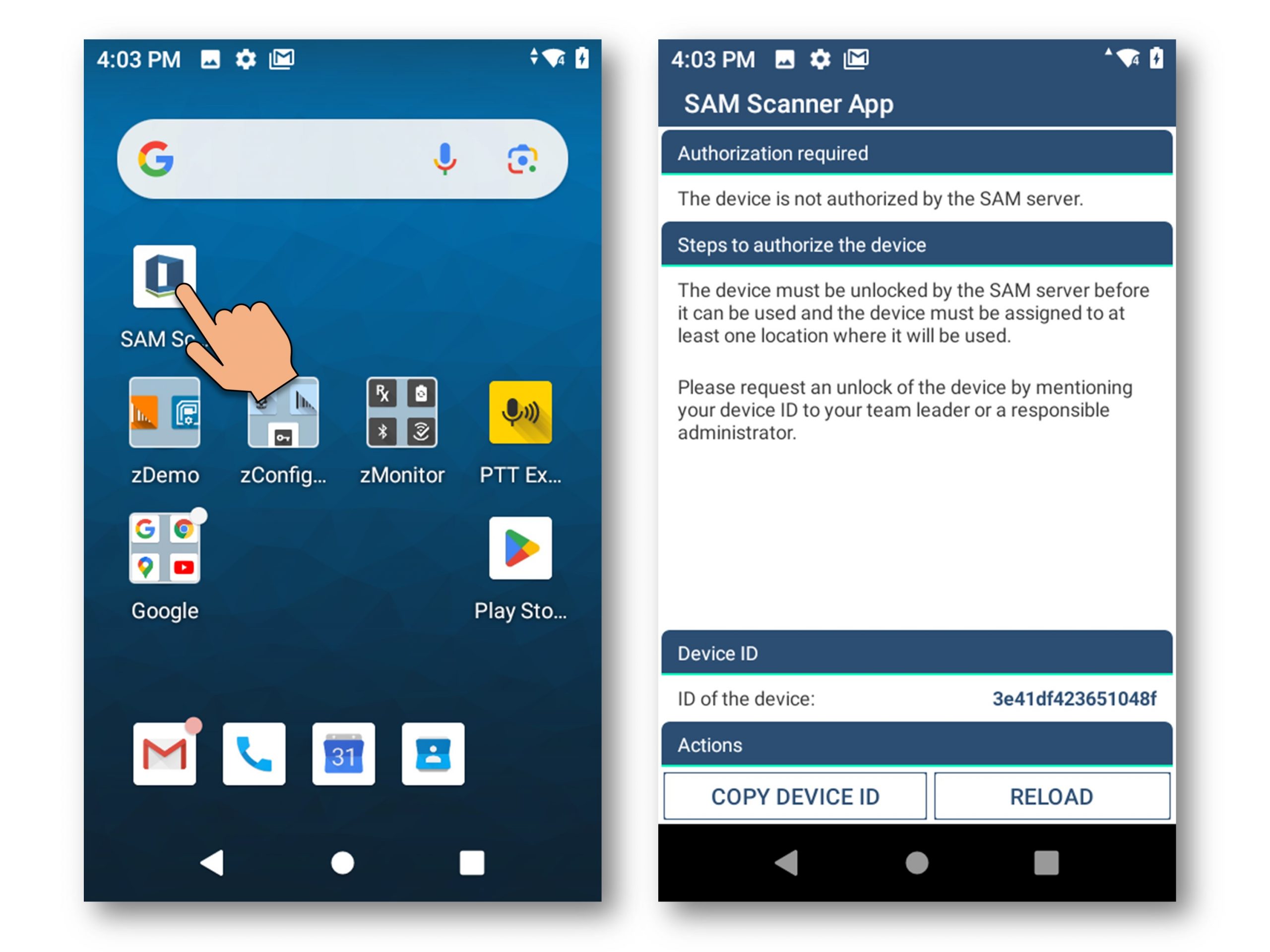
The ID is unique and must initially be verified and approved in the SAM system.