


Step 1 - Process selection - Order entry
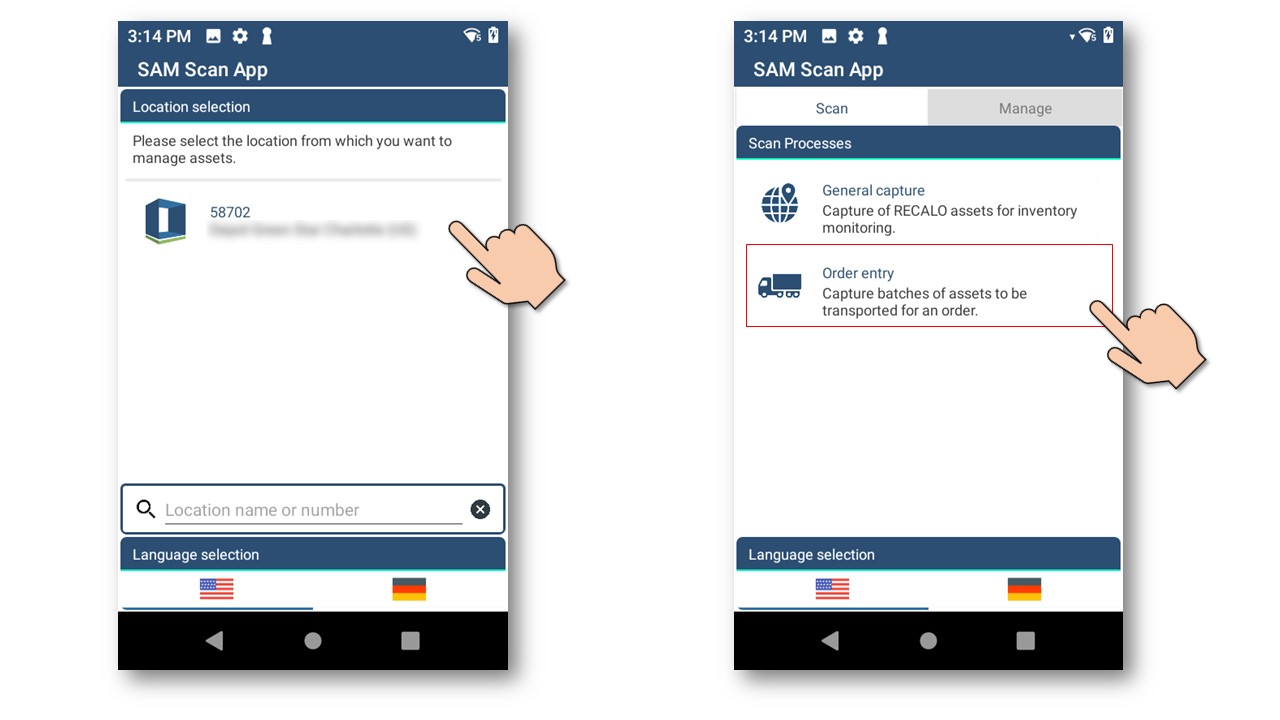
This process enables assets to be captured for an order that has been planned in advance. All information about the customer and the corresponding transport is already stored in the SAM system.
Step 2.1 - Overview of all current orders of the day - Select your order and start scanning
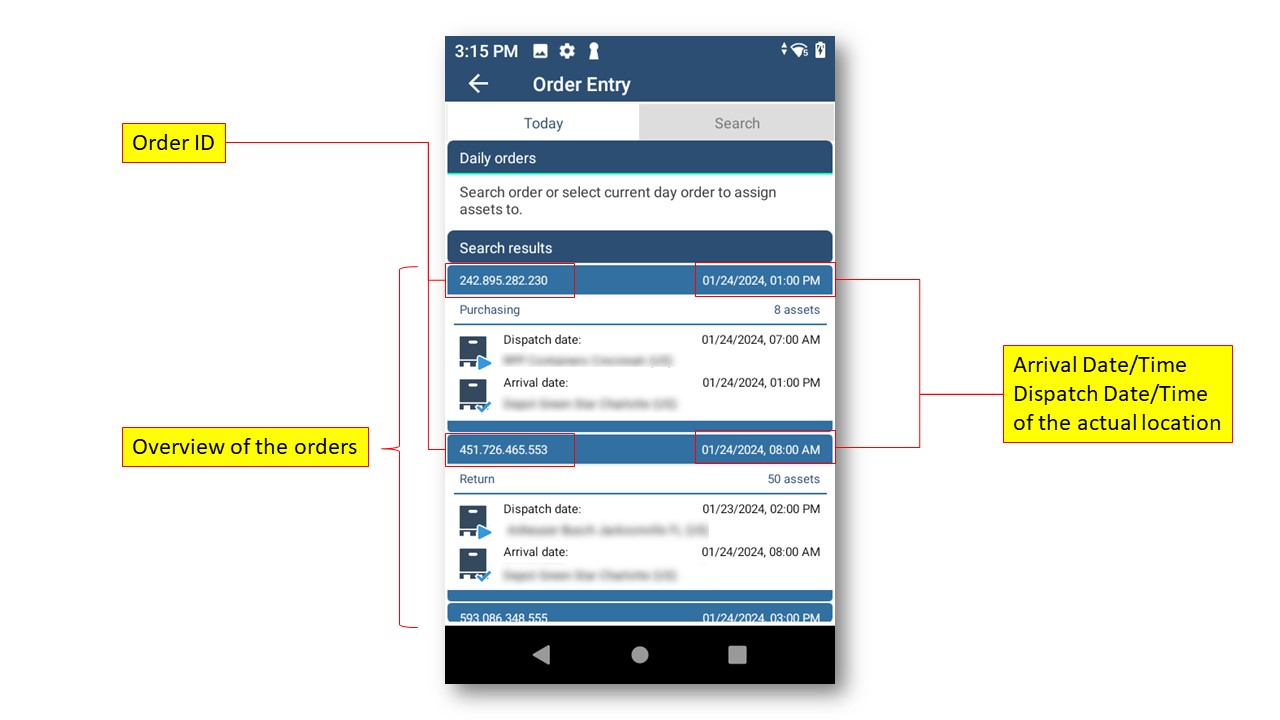
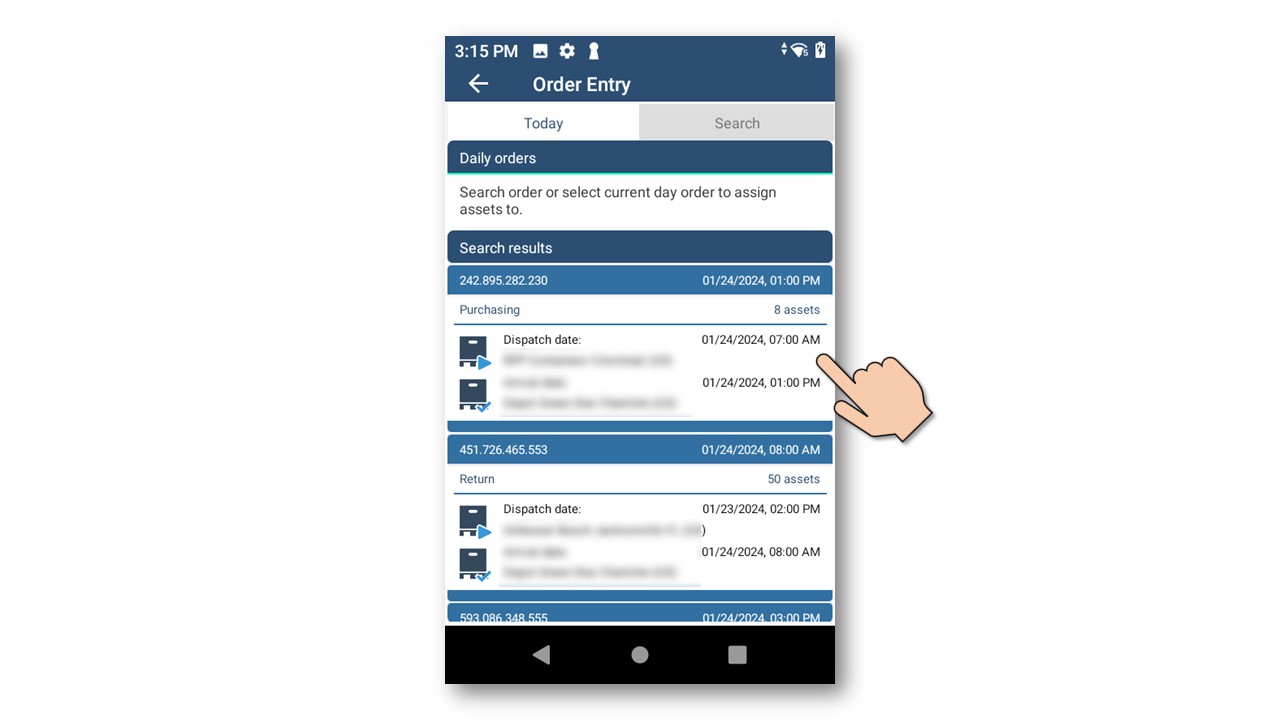
Select the order to which you want to scan and assign assets.
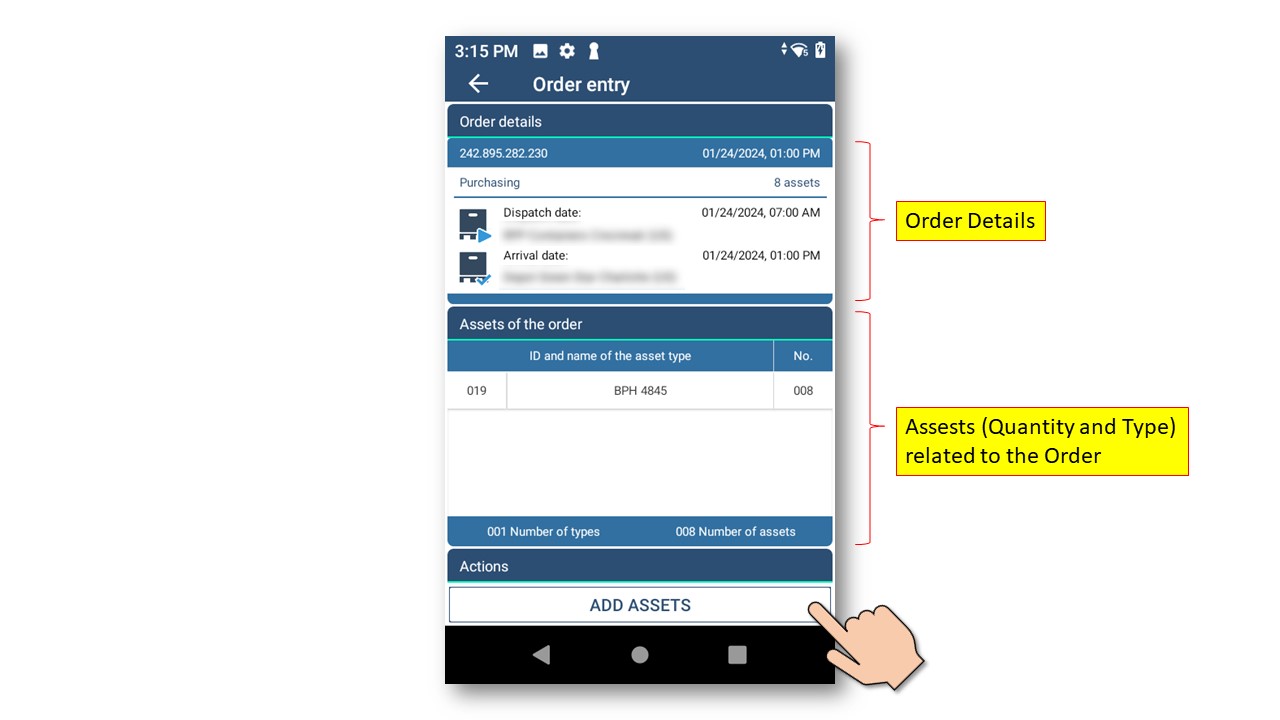
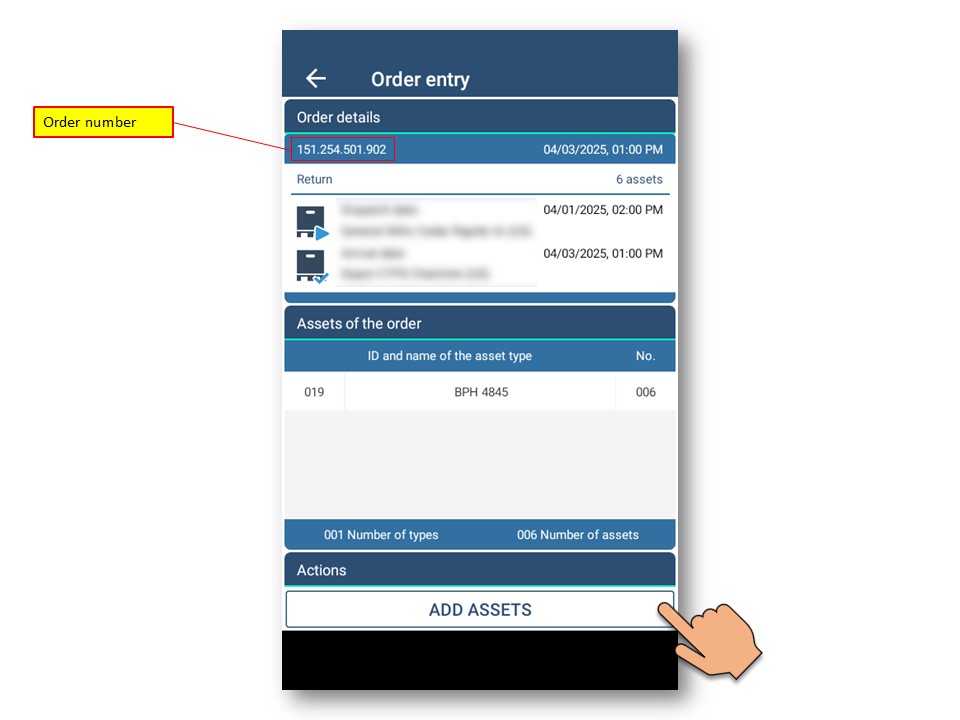
Summary of the selected order.
Press ADD ASSETS to start the scanning process.
Easily switch between optical barcode or RFID capture during the process
(if the scan-device has the appropriate functionality)
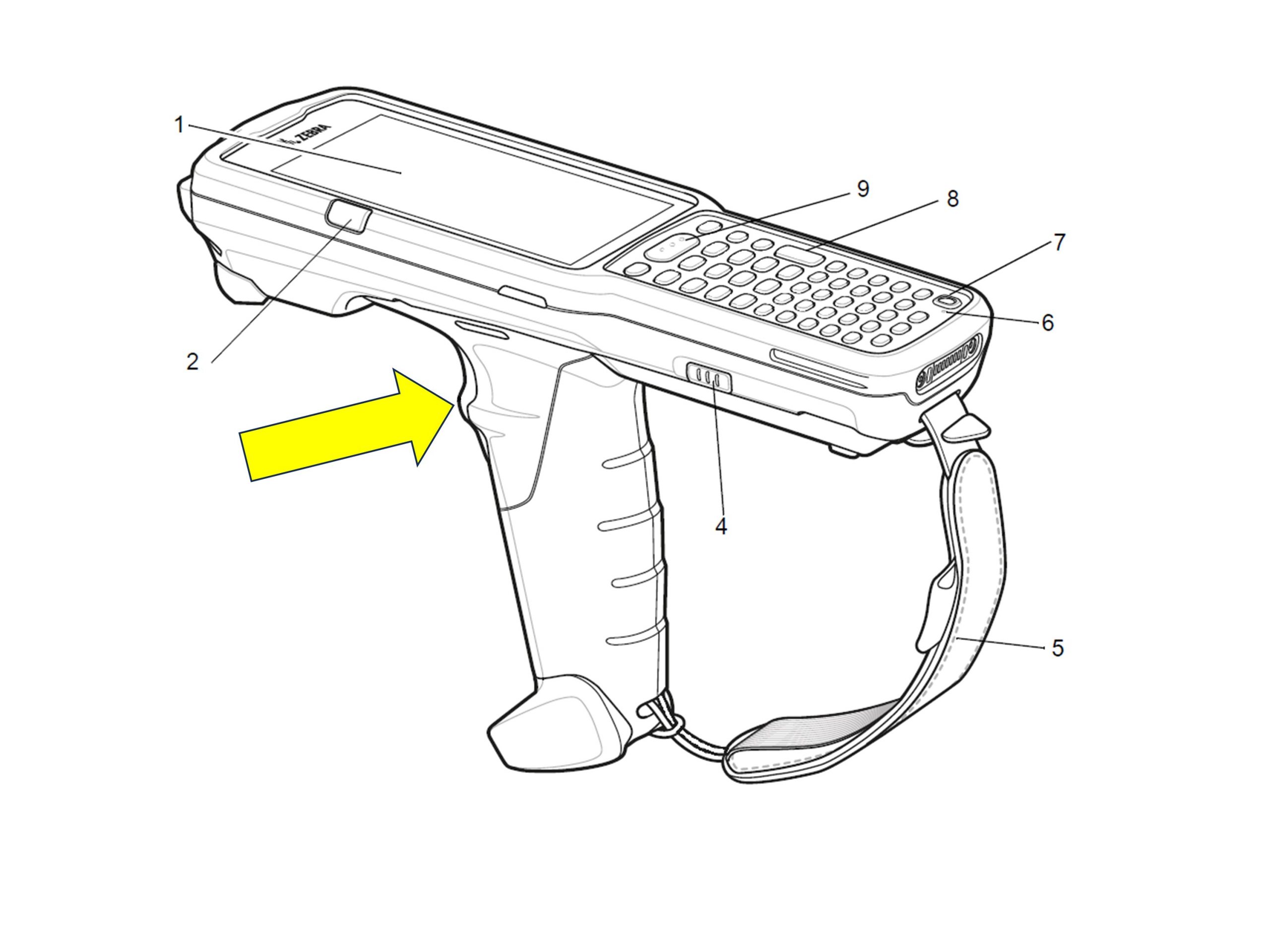
Capture returnable load carriers using the handle switch (Gun trigger).
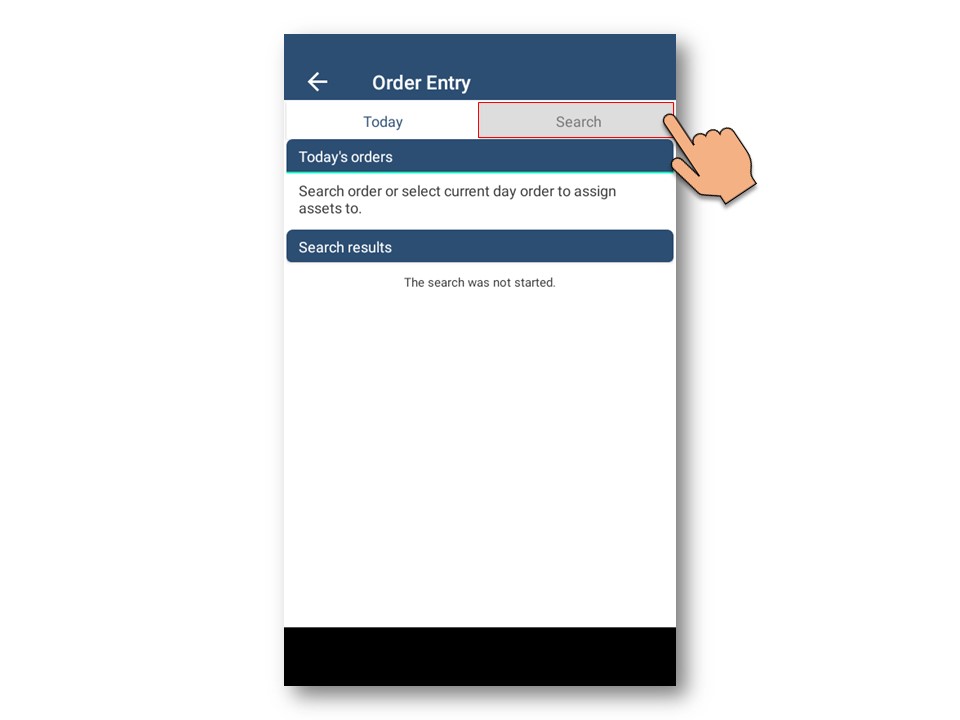
Step 2.2 - Search for an order - Select your order and start scanning
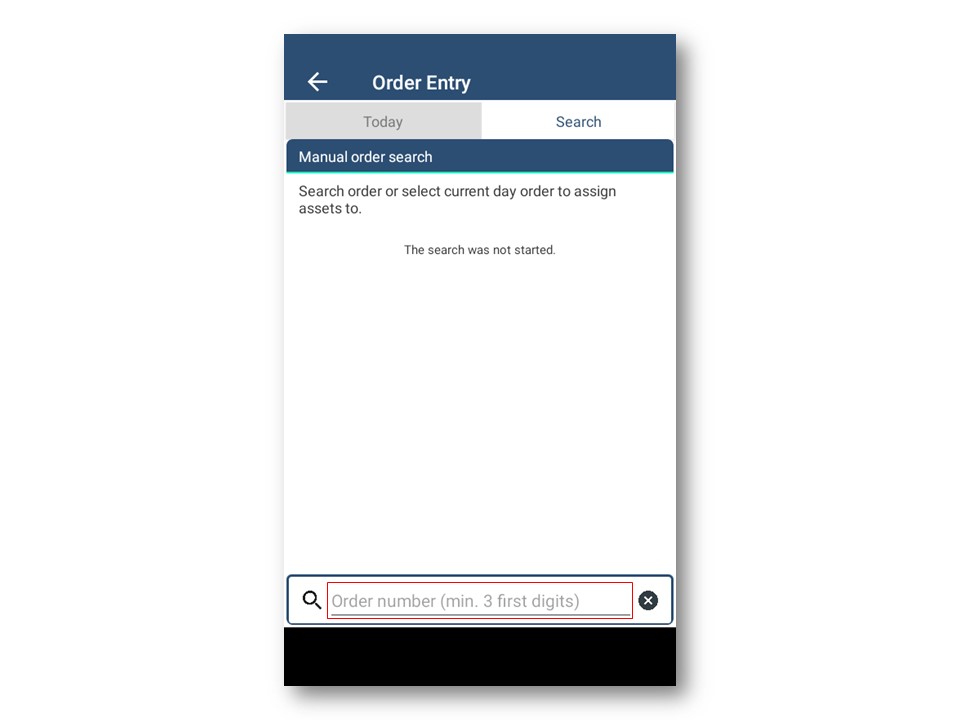
Entering the first 3 digits of the order number starts the search process
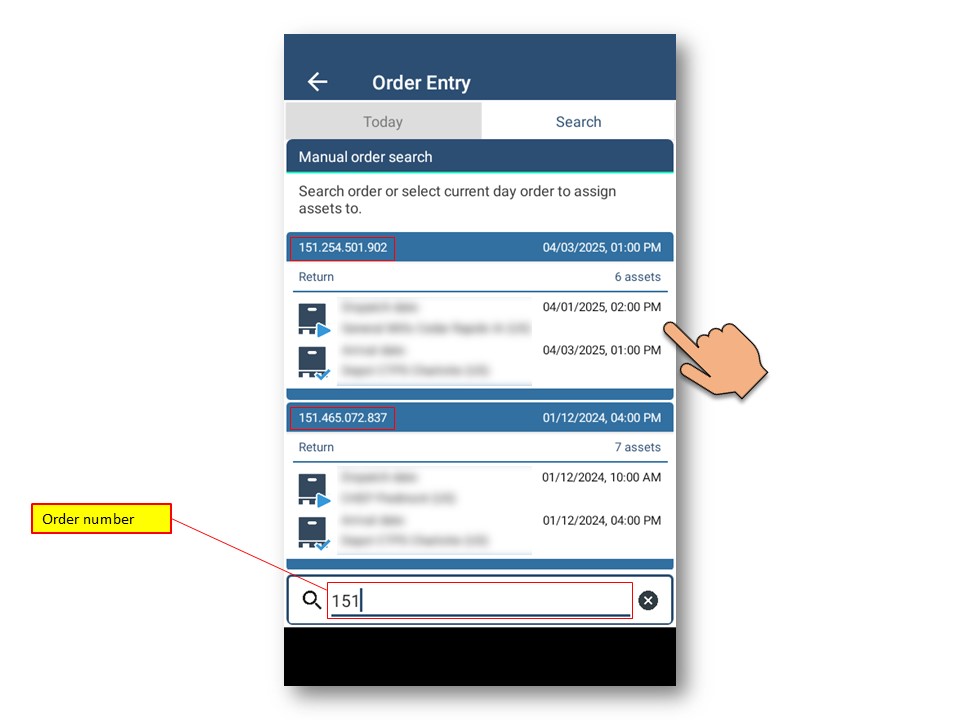
Entering the first 3 digits of the order number starts the search process.
Overview of all orders assigned to the location.
Continue in the usual process - adding assets to the order
Step 3.1. - Capture returnable load carriers
The returnable load carriers can optionally be captured by pallet space or in total.
This example shows the capturing of an individual pallet space.
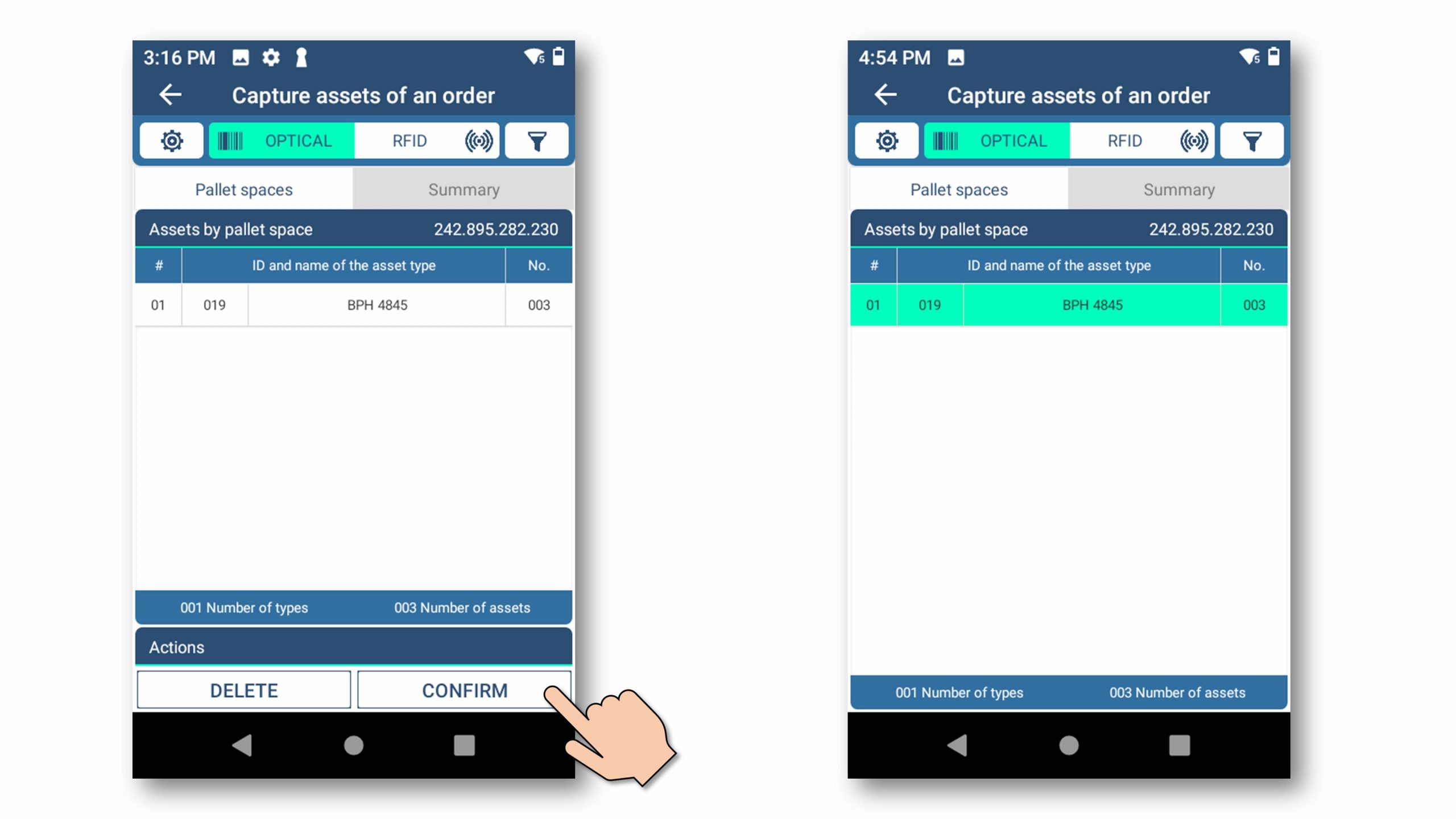
Process sequence:
- Capture the returnable load carriers
- Confirm the captured returnable load carriers
(a confirmed partial quantity corresponds to a captured pallet space; after confirmation, the line is displayed with a green background) - Optional: add further returnable load carriers
In this example, 3 returnable load carriers were successfully captured and confirmed by the user.
Step 3.2. - Capture additional returnable load carriers
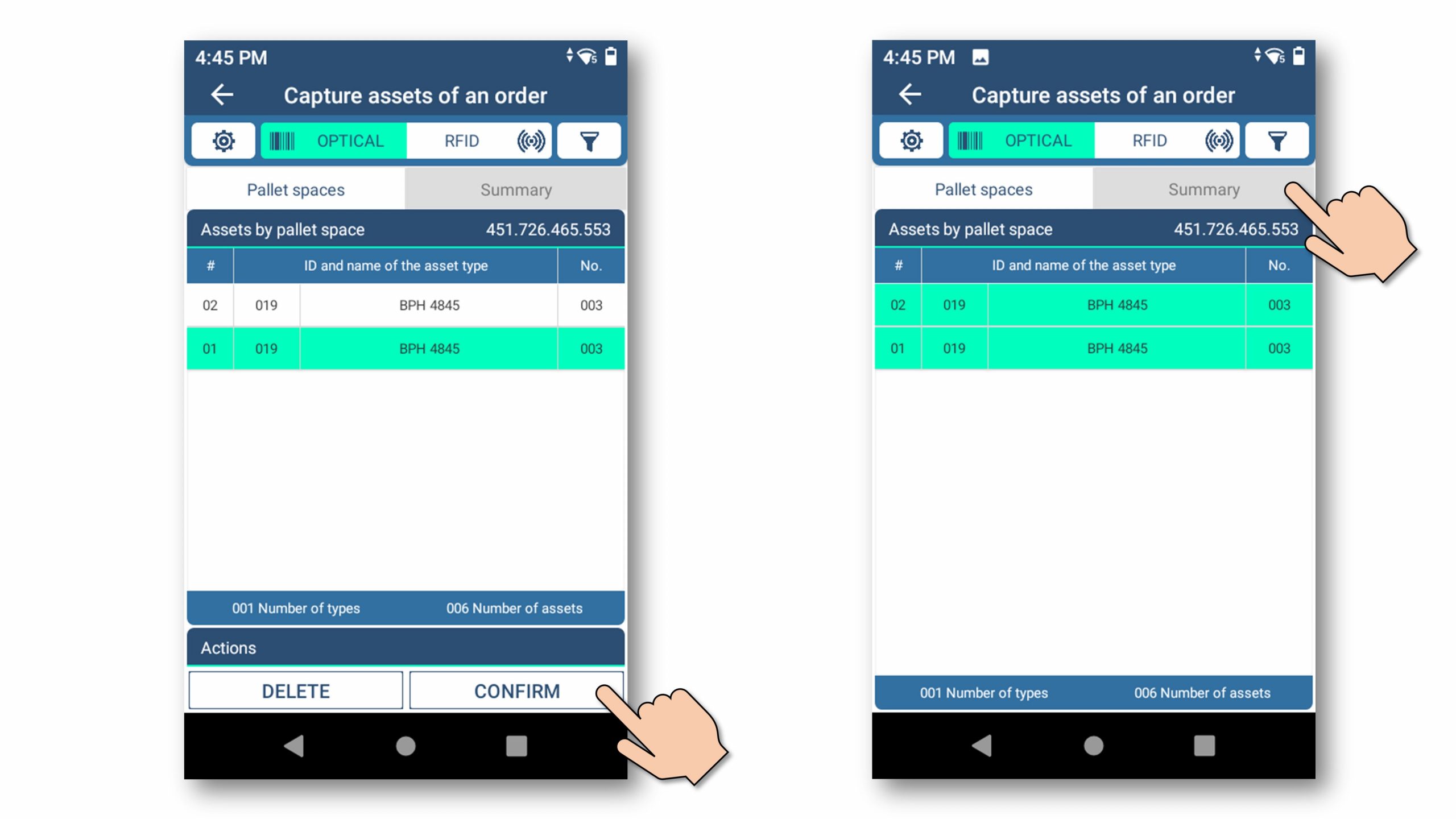
Capture additional pallet space and confirm.
As soon as a pallet space has been confirmed by the user, the next pallet space can be captured.
A scan of another asset label will create a new pallet space and place the just scanned asset ID in there.
After all assets were successfully captured, display a summary of all scanned pallet spaces as well as the scanned returnable load carriers in total.
Step 3.3. - Summarize and submit
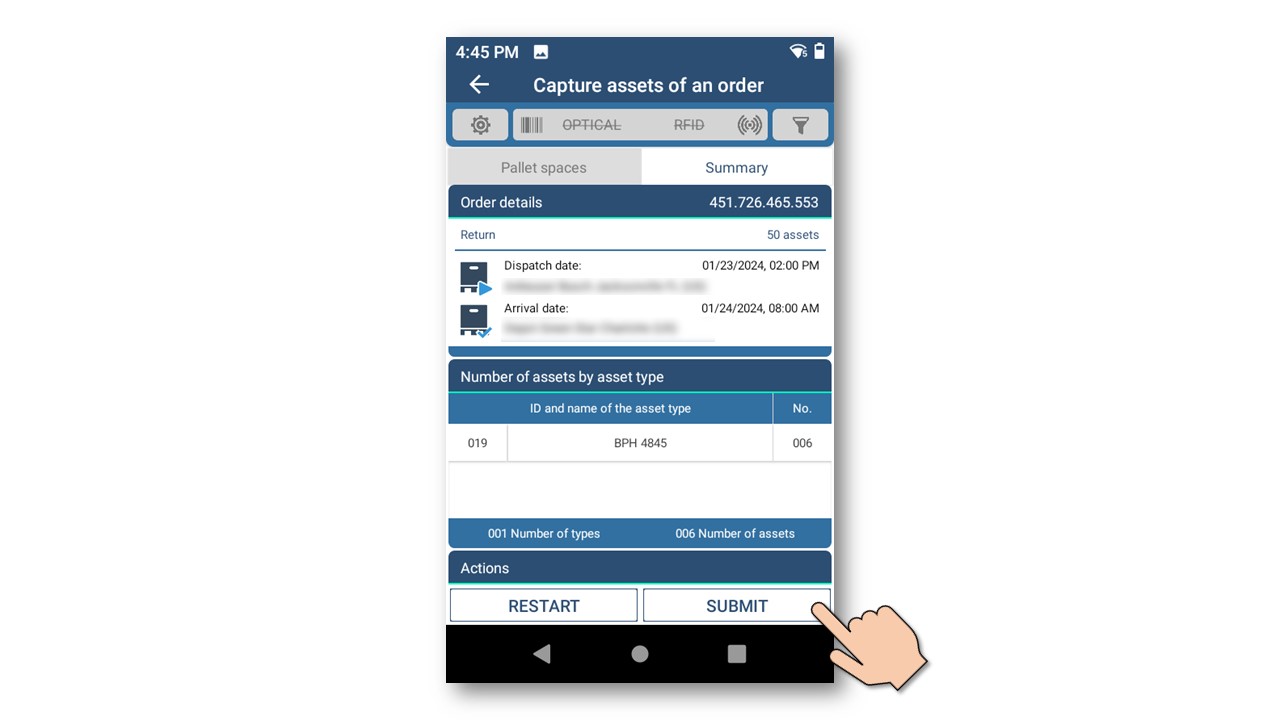
Summary of all scanned pallet spaces and total returnable load carriers.
Press "SUBMIT" to transfer all information to the SAM system.
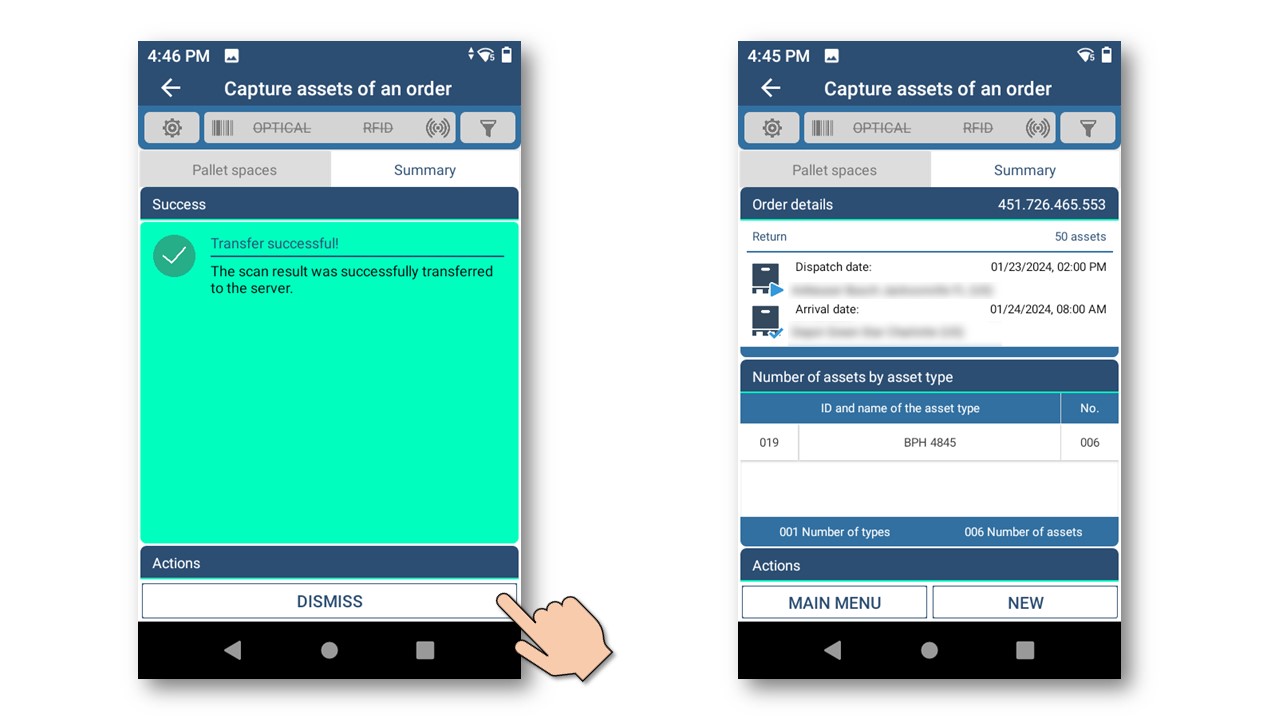
After the information has been transferred to the SAM system,
you can either capture more orders or go to the main menu.
- This process allows quick and easy asset capturing for a specific order.